Login with Google
Sign in to Agent-CoreX using your Google account via OAuth. No password is required — Google handles authentication and Agent-CoreX creates or retrieves your account automatically.
Last updated: April 2026
How it works
Agent-CoreX uses Supabase Auth with Google as an OAuth provider. Clicking "Continue with Google" redirects you to Google's consent screen. After authorizing, Google redirects back to /auth/callback, where a session is created and you land on your dashboard.
Sign in with Google
Go to the login page
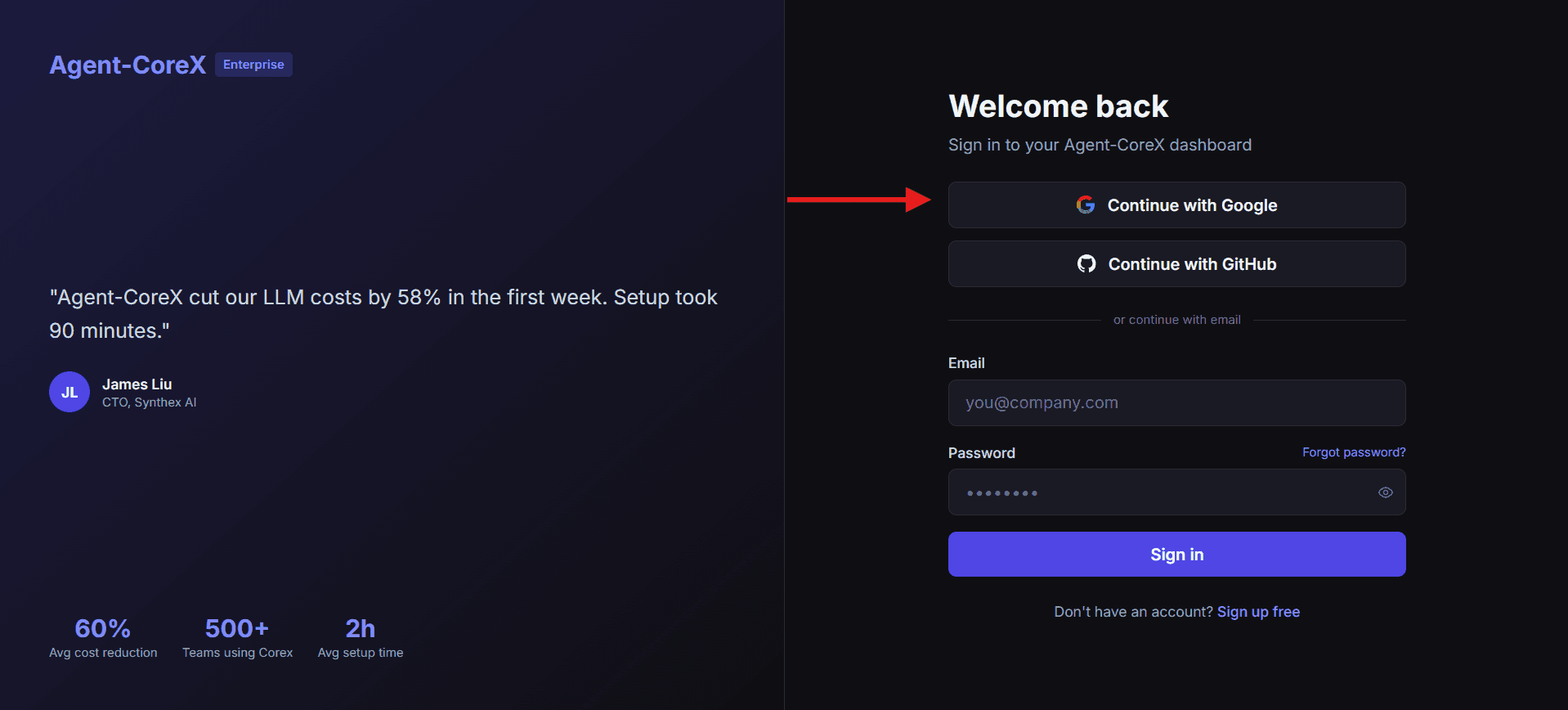
Navigate to agent-corex.com/login.
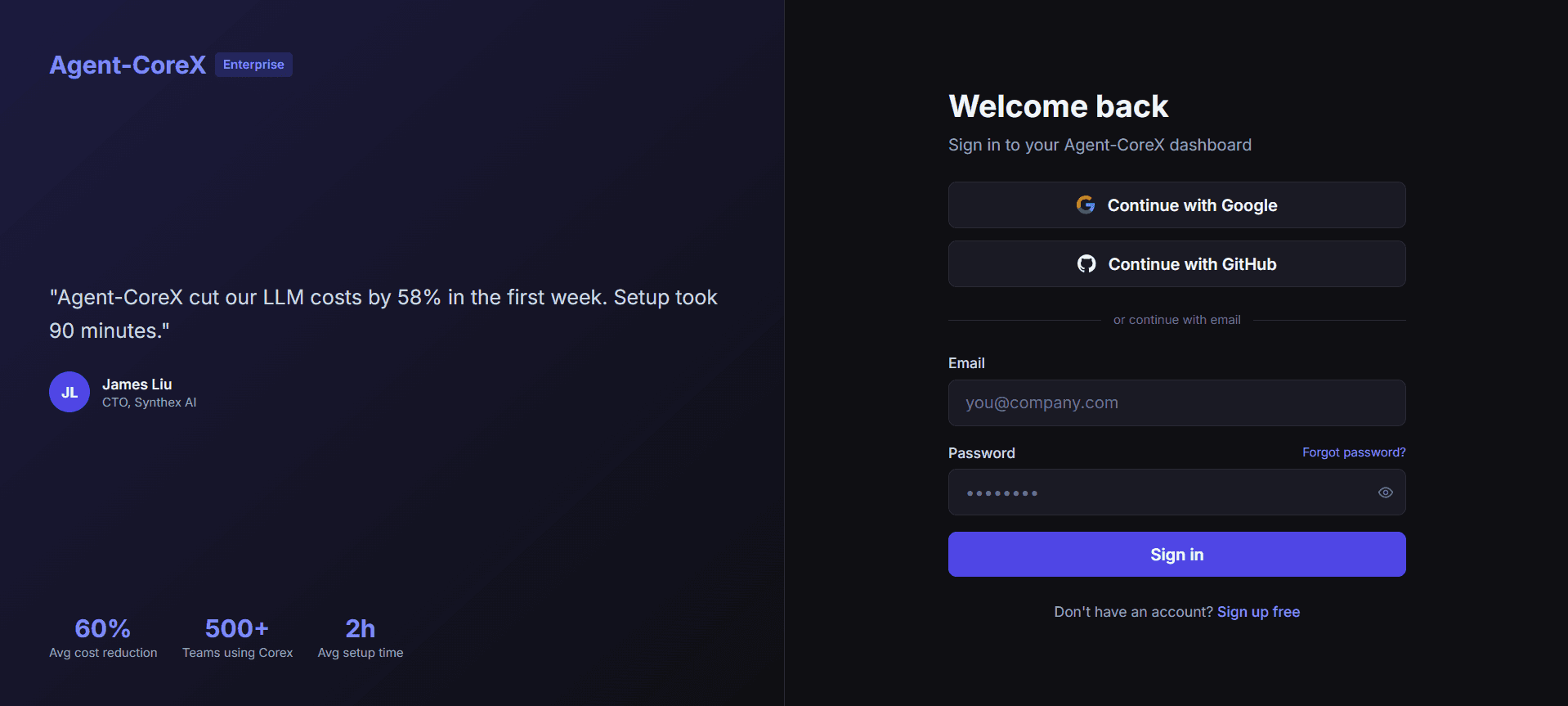
Click 'Continue with Google'
Click the "Continue with Google" button at the top of the sign-in options. The button briefly shows "Redirecting…" with a spinner while the OAuth flow initiates.
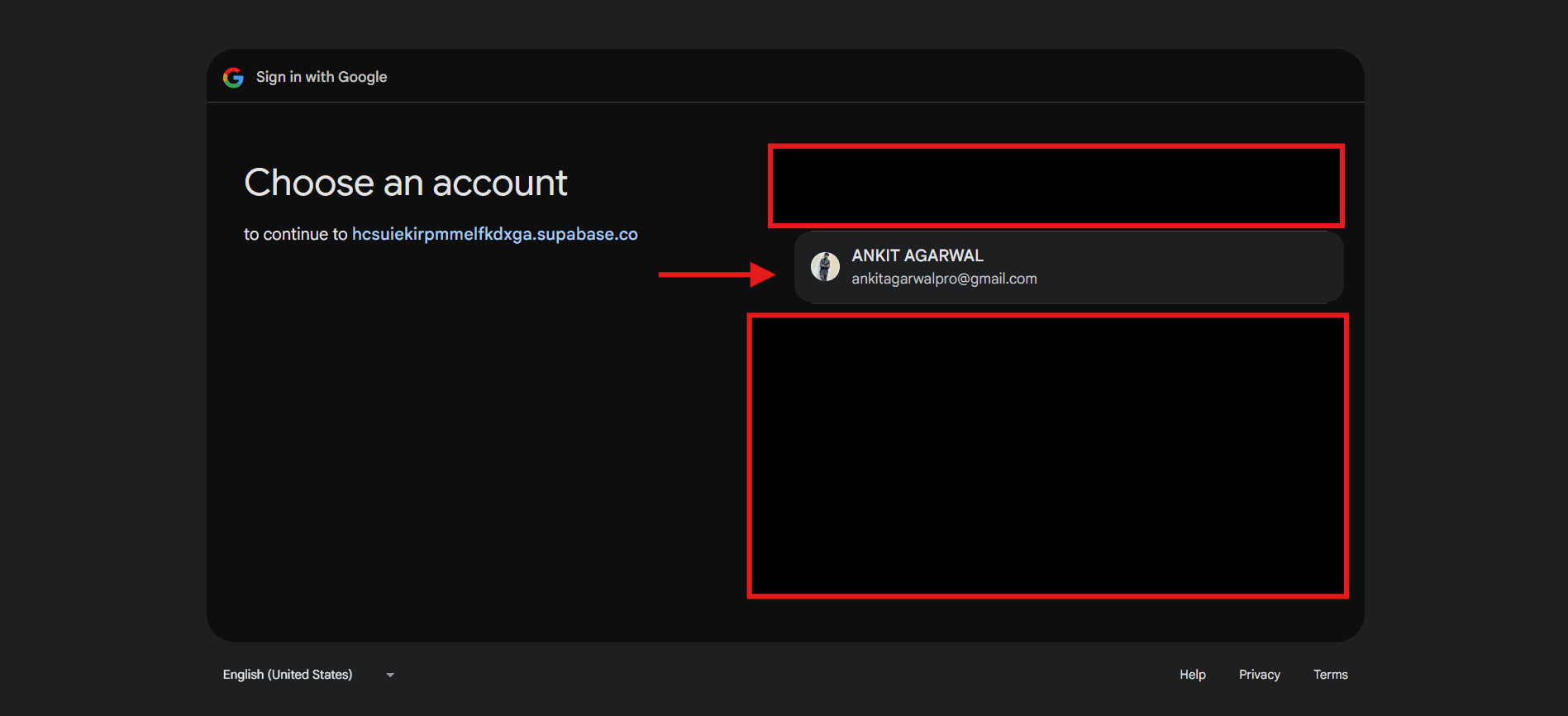
Choose your Google account
Google opens an account picker (or consent screen if not already signed in). Select the Google account you want to use with Agent-CoreX and grant access.
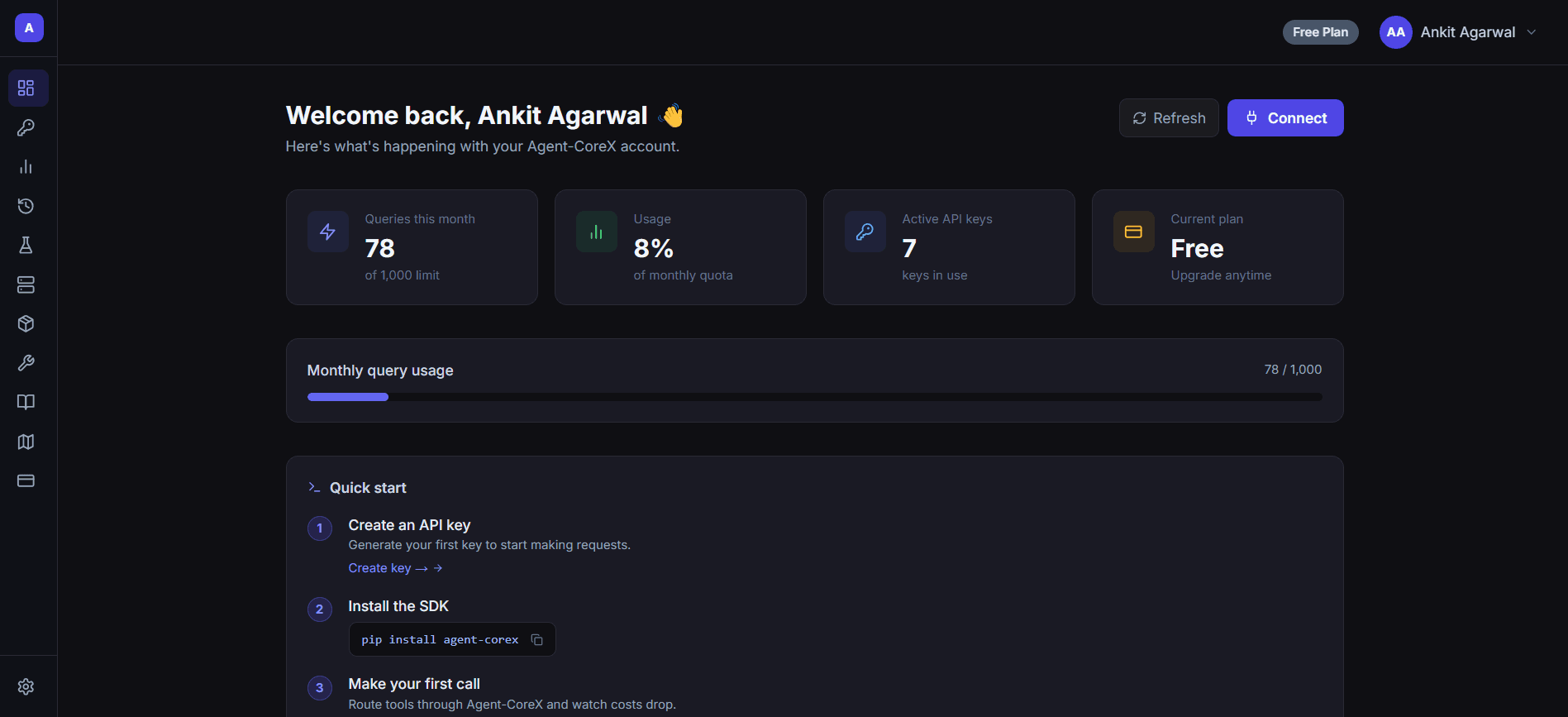
Redirected to dashboard
Google redirects you back to /auth/callback. Agent-CoreX creates your session and sends you to /dashboard automatically.
Sign up with Google
No separate sign-up step needed. If you don't have an Agent-CoreX account, the first time you click "Continue with Google" (on either /login or /signup) your account is created automatically using your Google email and profile.
Troubleshooting
I see "OAuth sign-in failed" after returning from Google.
This error appears as a toast when the callback URL contains ?error=auth_failed. Usually caused by dismissing the Google consent screen or a network issue. Try again.
Google shows "Access blocked: Agent-CoreX has not completed verification."
TODO: Verify from implementation — this may appear during development. In production the app should be verified. Contact support if you see this in production.
Both Google and GitHub buttons are greyed out.
Both OAuth buttons are disabled while either is loading. If the spinner persists, refresh the page and try again.
Signed in? Your next step is generating an API key so you can start making requests. Create an API Key →