Login with Email
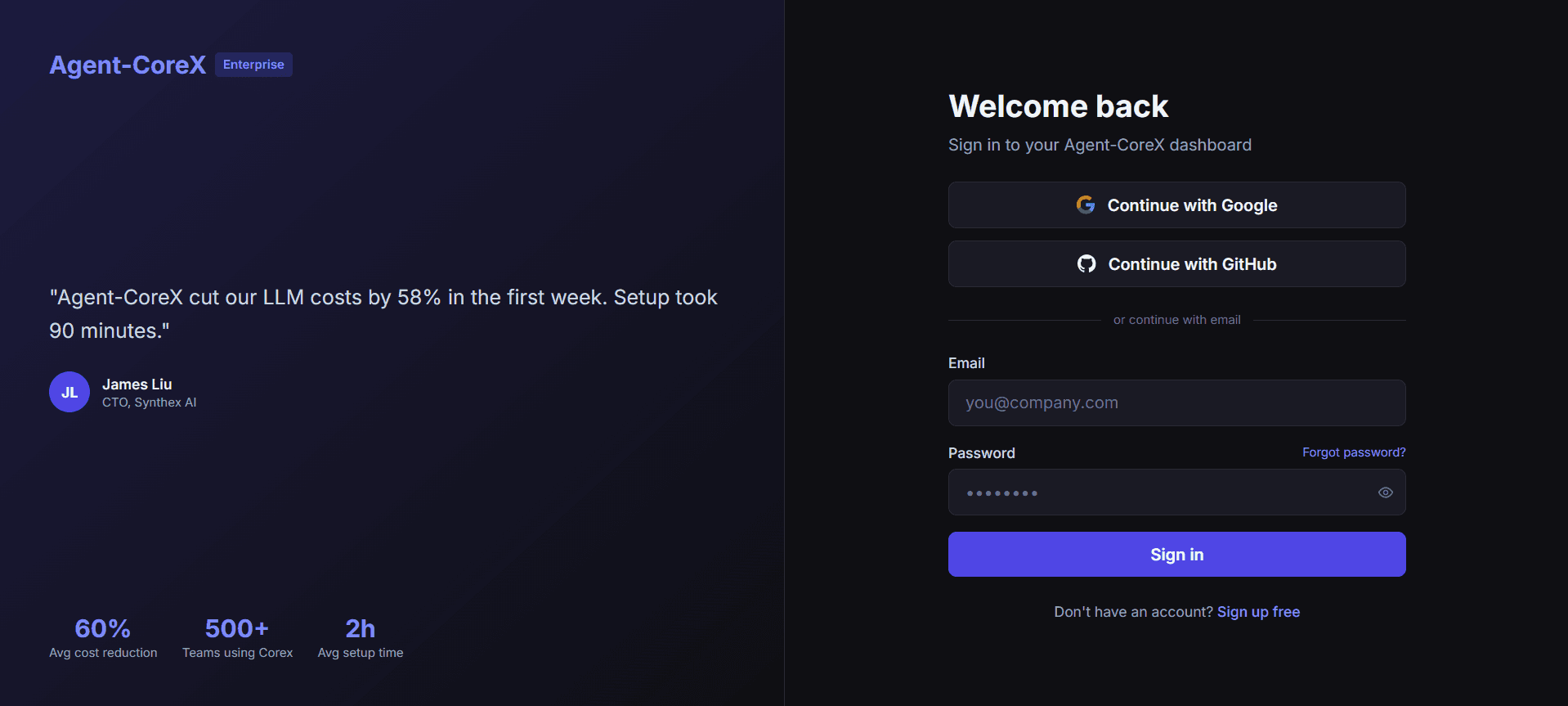
Sign in to Agent-CoreX using your email address and password. The login form sits below the OAuth buttons, separated by an "or continue with email" divider.
Last updated: April 2026
Sign in with email
Go to the login page
Navigate to agent-corex.com/login. Scroll past the OAuth buttons to the email form below the "or continue with email" divider.
Enter your email and password
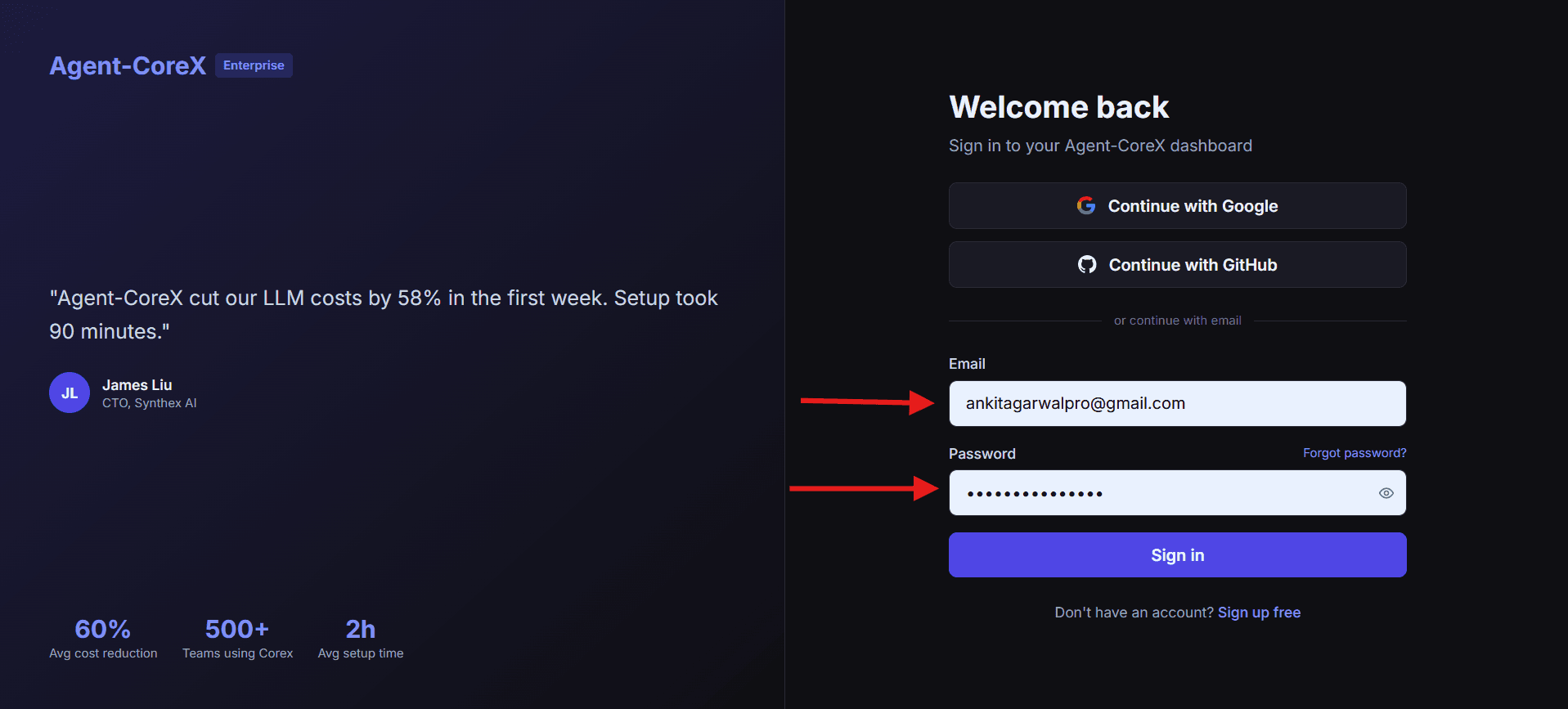
Fill in the Email field (you@company.com) and the Password field. Use the eye icon on the right of the password field to toggle visibility.
Click 'Sign in'
Click the "Sign in" button. While the request processes, the button shows a spinner and reads "Signing in…". On success you are redirected to /dashboard. On failure, a toast notification shows the error message (e.g. "Invalid login credentials").
Create an account
Click "Sign up free" at the bottom of the login page, or go directly to agent-corex.com/signup.
Open the sign-up page
The sign-up page has the same layout as login — OAuth buttons at the top (labelled "Sign up with Google" / "Sign up with GitHub") and an email form below.
Enter your email and choose a password
Fill in your email address and choose a secure password.
Submit and verify email (if required)
Click "Create account". Depending on your Supabase configuration, you may receive an email verification link. After verifying, you are redirected to your dashboard.
Forgot password
Click 'Forgot password?'
On the login page, click the "Forgot password?" link to the right of the Password label. You are taken to /forgot-password.
Enter your email
Enter the email address associated with your account and submit. Agent-CoreX sends a password-reset email via Supabase Auth.
Click the reset link in your email
Open the email and click the reset link. You are taken to /reset-password where you can set a new password.
Troubleshooting
I get "Email is required" or "Invalid email" on submit.
These are inline validation errors from the login form. Make sure the email field matches the format user@domain.com before submitting.
The "Sign in" button stays disabled after I click it.
The button is disabled while loading (disabled:opacity-50). If it stays greyed out, check your network connection and try again.
I never received my password reset email.
Check your spam folder. The email is sent by Supabase. If it still doesn't arrive after a few minutes, try the forgot-password flow again or use a Google/GitHub OAuth sign-in instead.
Signed in? Your next step is generating an API key so you can start making requests. Create an API Key →